Setup and Use
Requirements
Section titled “Requirements”You will need to install the following dependencies:
- Python >= 3.13 (Download)
And one of the following Browsers (you will need to specify your selected browser in the Browser configuration):
- Google Chrome (Download)
- Chromium (Download)
- UngoogledChromium (Download)
- Thorium (Download)
- Brave (Download)
Installation
Section titled “Installation”1. Download the Program
Section titled “1. Download the Program”You can either download the repository ZIP file directly or clone it via Git.
Download ZIP (Recommended for most users)
https://codeberg.org/Discord-OTP-Forcer/Discord-OTP-Forcer/archive/refs/heads/main.zip
Clone via Git
If you prefer using the command line, you can clone the repository instead:
git clone --depth=1 https://codeberg.org/Discord-OTP-Forcer/Discord-OTP-Forcer.gitcd Discord-OTP-Forcer2. System Setup
Section titled “2. System Setup”Choose your operating system below to continue the setup process:
Windows
Section titled “Windows”- Go to the location where you extracted the zip file or where you cloned the repository.
- Double-click and run
scripts/Windows/setup.cmd. - The requisite dependencies will install automatically. Once finished, the
config/account.ymlandconfig/program.ymlfiles will open in Notepad. - fill out the necessary details (see the Configuration section below) then save the files and close Notepad.
- If you are ready to start a forcer session now, type
Yat the prompt. A new window will open starting a forcer session.
macOS, Linux, other Non Windows based OS
Section titled “macOS, Linux, other Non Windows based OS”- Open your terminal and navigate to the repository folder.
- Create and activate a Python virtual environment:
Via Pip
python -m venv .venvsource .venv/bin/activate- Install the required dependencies:
pip install .Via UV
uv venv --python 3.14source .venv/bin/activate- Install the required dependencies:
uv sync- Open the
config/account.ymlfile in your preferred text editor and fill out the necessary credentials. - Open the
config/program.ymlfile and fill out the necessary program configuration options.
Configuration
Section titled “Configuration”program.yml
Section titled “program.yml”The program has two modes: Reset and Login. Set programMode to one of these.
programMode: Reset: Will set the program to password reset mode. It will log in to your account using the password reset tokenresetToken, enter your desirednewPassword, and then start codes. (the reset token usually expires after 6 hours, keep that in mind)programMode: Login: Will set the program to login mode. This is a normal email+password login which will then (usually) ask you for a hCaptcha, then start Forcing codes.
Browser
Section titled “Browser”You will need to specify a browser so Selenium knows which one to use. Set browser to your chosen browser name. Available options are: Chrome, Chromium (for Chromium and UngoogledChromium), Thorium, and Brave.
Advanced Configuration
Section titled “Advanced Configuration”| Option | Description | Default |
|---|---|---|
sensitiveDebug |
If True, hides sensitive info (passwords, tokens) from logs using a CensoredStr class. |
True |
logCreation |
If True, saves logs to a file in the log/ directory. |
False |
headless |
Runs the browser without a GUI. Not recommended as you cannot solve captchas. | False |
logLevel |
Minimum level of logs to show (DEBUG, INFO, SUCCESS, WARNING, ERROR, SENSITIVE). |
INFO |
elementLoadTolerance |
Seconds to wait for UI elements to appear before timing out. | 3 |
usualAttemptDelayMin |
Minimum seconds to wait between normal attempts. | 6 |
usualAttemptDelayMax |
Maximum seconds to wait between normal attempts. | 8 |
ratelimitedAttemptDelayMin |
Minimum seconds to wait when rate limited. | 7 |
ratelimitedAttemptDelayMax |
Maximum seconds to wait when rate limited. | 11 |
Code Modes
Section titled “Code Modes”codeMode: Normal: Generates a 6-digit numeric ‘normal’ code.codeMode: Backup: Generates an 8-digit alphanumeric ‘backup’ code.codeMode: "aqzi[a-z0-9]{2}(p|q)[3-5]": Special regex mode. Generates a backup code conforming to a given regex template (useful if you only remember parts of your code). For example, the pattern above could produce codes like aqzi03p4, aqzi8jq5, and many others. The template must fit within the Discord backup code format: [a-z0-9]{8}. Fill in the characters you remember, and use a regex pattern for the ones you don’t.
account.yml
Section titled “account.yml”Fill in your account’s email and password in the email and password fields (in quotes).
If using Reset mode, you’ll also need to fill out newPassword and resetToken (password is not needed).
How to Get Your Reset Token
Section titled “How to Get Your Reset Token”- Go to discord.com/login and enter the email for the account, then click “Forgot your password?”.
- Find the password reset email and click “Reset Password”.
- Your token will be in the URL for the password reset page.
Example: https://discord.com/reset#token=YOUR_TOKEN_HERE
Visual Instructions
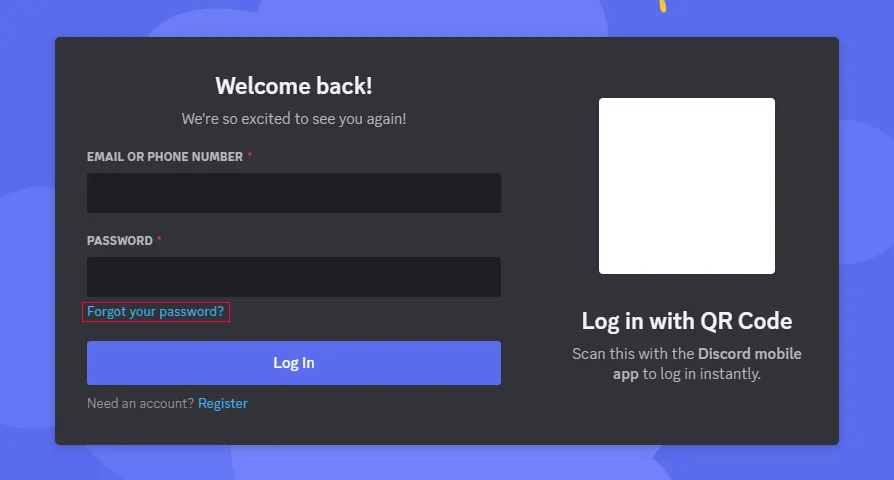
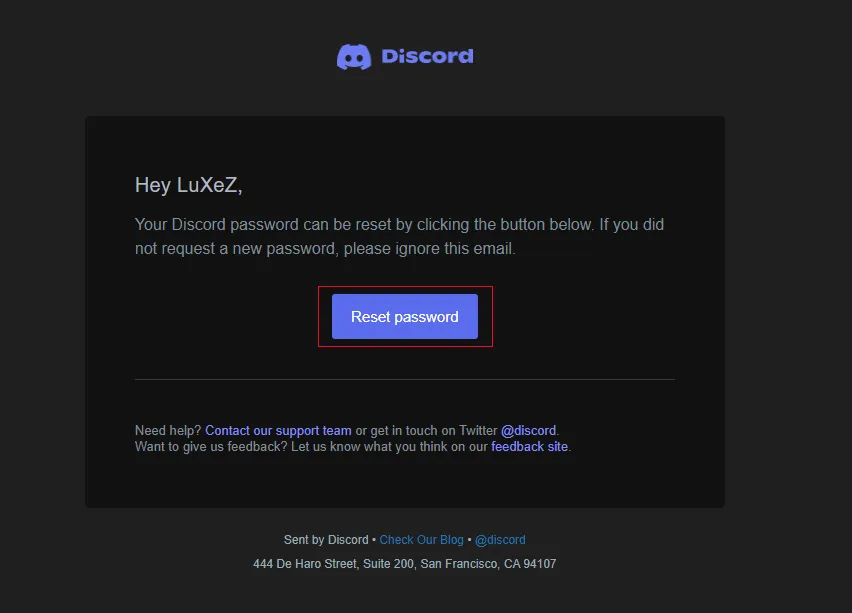
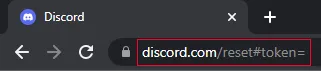
Running the Program
Section titled “Running the Program”Windows
Section titled “Windows”Via .cmd Script
- Go to scripts/Windows/ folder
- Doble click on
start.cmd
Via CMD + Python
- Open CMD
- Go to the path where you decompress the program
- Execute:
python main.pymacOS, Linux, other Non Windows based OS
Section titled “macOS, Linux, other Non Windows based OS”- Open your terminal
- Go to the path where you decompress / clone the program
- Execute:
Via Python
python main.pyVia UV
uv run main.pyWhat will happen on both Operative Systems
Section titled “What will happen on both Operative Systems”- An automated Google Chrome window will open. When the hCaptcha appears, complete it as normal.
- Wait for either a successful login or a closed browser window (failure).
- Success: The program will print your account token to the console and save it to
secret/token.txt. - Important: The automated browser window will stay open after the program finishes. You will need to press Enter in the terminal to close it. This allows you to manually verify the login or perform further actions.
- WARNING: Do not run this where someone else could access the log. Save this token safely!
- CRITICAL: Do NOT log out, log in from a different device, or change account settings. Doing so invalidates your currently obtained token.
- Using the token, log into your account via browser console:
- Go to
discord.com/login, open the developer tools console. - Paste a token login script (like this one).
- Wait for it to log in.
- Go to
- Go to User Settings > My Account > Authenticator App > View Backup Codes.
- Save your backup codes! Then click “Remove Authenticator App” and enter one of your new backup codes.
Updating Dependencies
Section titled “Updating Dependencies”To update all installed dependencies, you can run the update script:
Windows
Section titled “Windows”Run scripts/Windows/update_dependencies.cmd to update all Python packages that this program uses.
macOS, Linux, other Non Windows based OS
Section titled “macOS, Linux, other Non Windows based OS”Via Python
python install .Via UV
uv syncUninstalling Dependencies
Section titled “Uninstalling Dependencies”To remove all installed dependencies, you can run the uninstall script:
Windows
Section titled “Windows”Run scripts/Windows/uninstall_dependencies.cmd to uninstall all Python packages that this program uses.
macOS, Linux, other Non Windows based OS
Section titled “macOS, Linux, other Non Windows based OS”Is easier to remove the whole .venv and start a new one:
rm -r .venv